
Account Setup
Everything between "I don't have a GeoMaster account" and "I'm inside my first project": creating your account, verifying your email, logging in, and finding…
Everything between "I don't have a GeoMaster account" and "I'm inside my first project": creating your account, verifying your email, logging in, and finding your way around the Dashboard for the first time.
Creating Your Account
-
Go to app.geomaster.uk/register (or click Sign up from the login page).
-
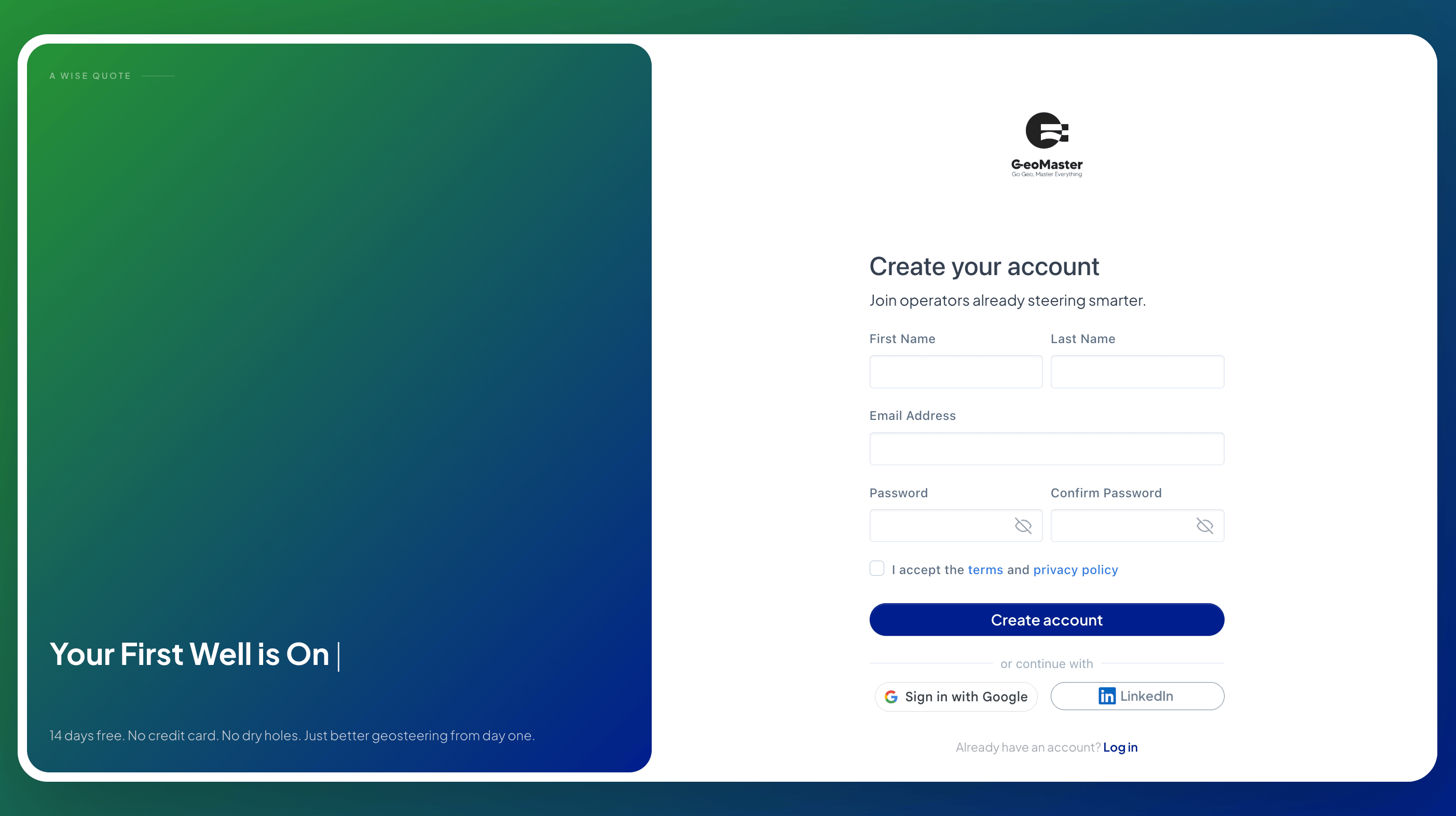
Fill in the registration form:
| Field | Notes |
|---|---|
| First Name / Last Name | Required |
| Email Address | Required — use your professional or company email; this is what invitations and account emails go to |
| Password | Required — minimum 12 characters, with at least one uppercase letter, one lowercase letter, one number, and one special character. A live strength checklist appears as you type |
| Confirm Password | Must match |
| Terms checkbox | You must accept the Terms of Use and Privacy Policy to continue |
- Click Create account.
Or sign up with Google / LinkedIn: below the form, click Continue with Google or Continue with LinkedIn to skip the password step entirely and create your account from that provider's profile.
After submitting, you're redirected to the Login page with a banner: "Account created — check your email to verify your address before logging in." You cannot log in yet — email verification is required first.
Verifying Your Email
-
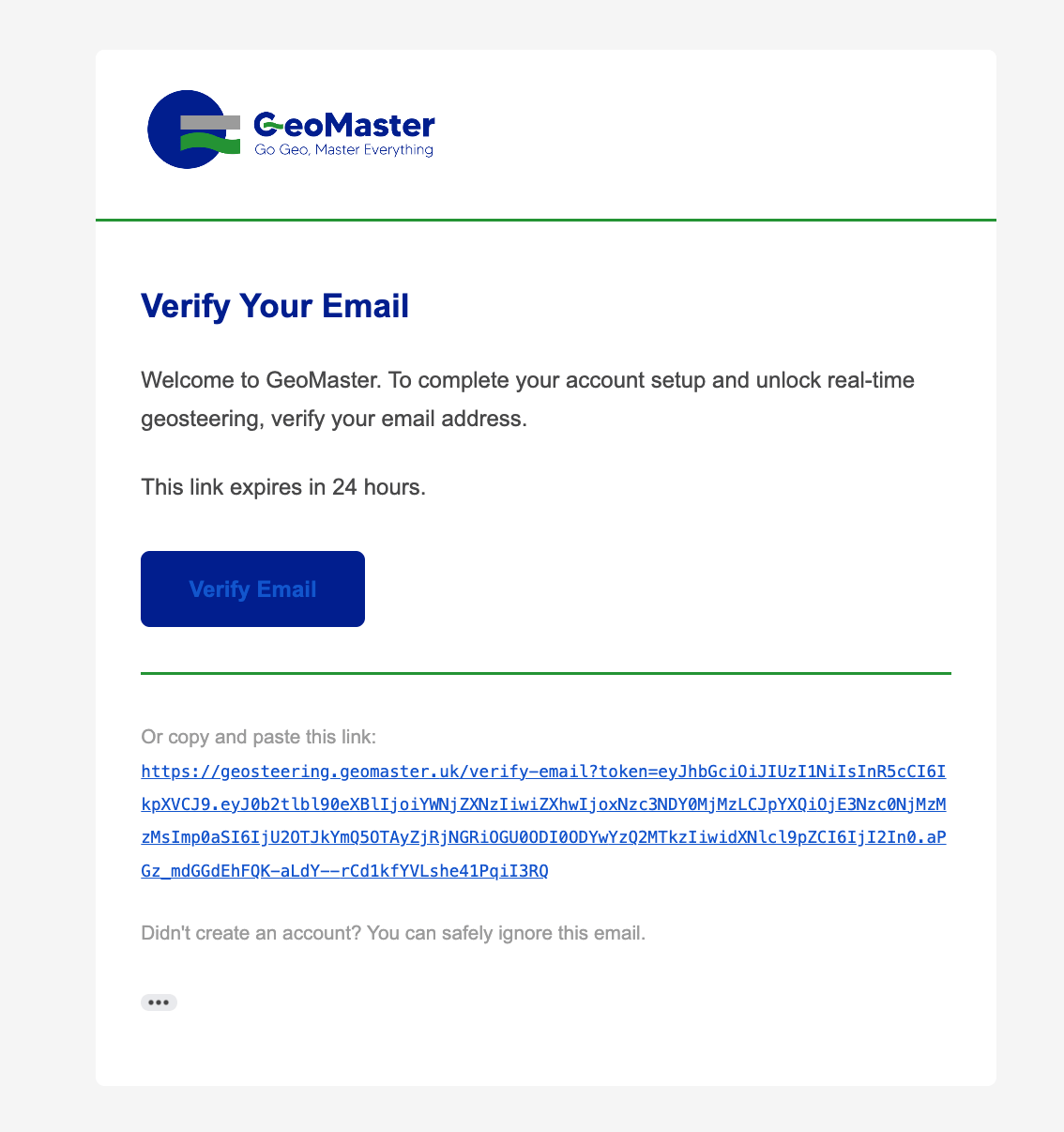
Open the verification email GeoMaster sent you and click the link inside it. This opens the app's
/verify-emailpage. -
The page shows a brief "Verifying your email..." spinner, then one of two results:
-
Success — "Email Verified." Click Log in to GeoMaster to continue.
-
Failed — the link has expired or was already used. Click Resend verification email, enter your email address, and click Send verification email to get a new link.
Logging In
-
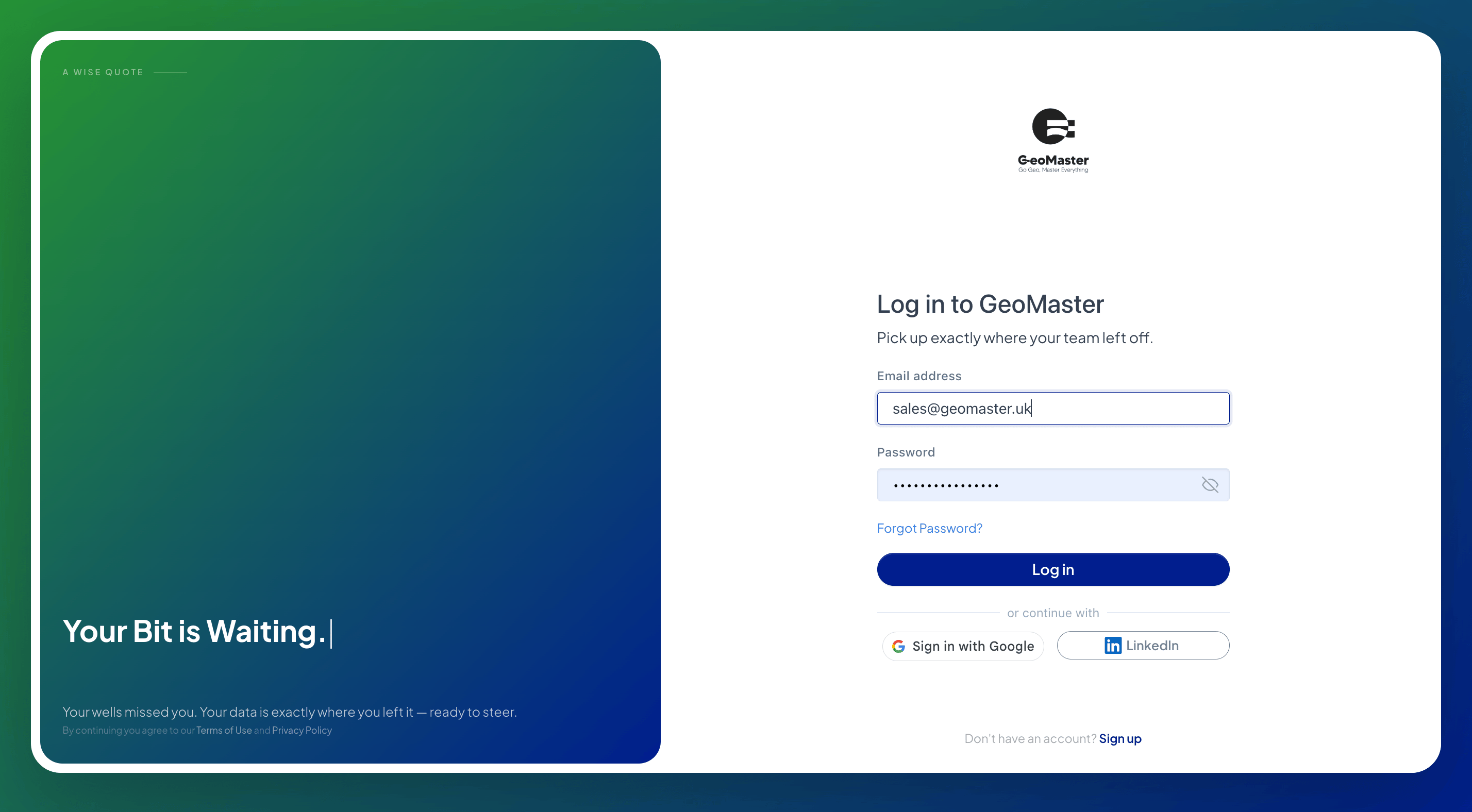
Go to app.geomaster.uk/login.
-
Enter your email and password, or use Continue with Google / LinkedIn if that's how you registered.
-
Click Log in.
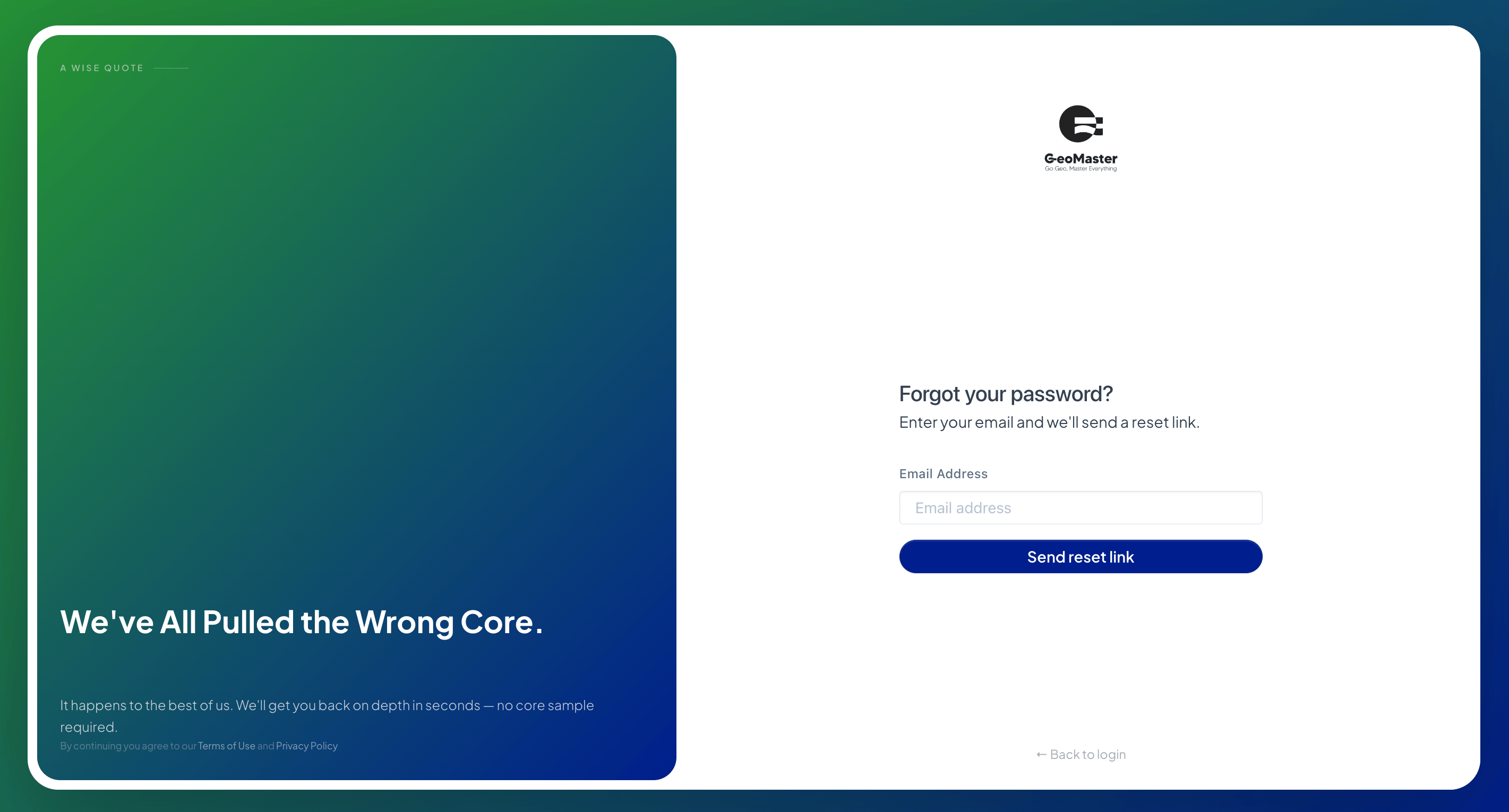
Forgot your password? Click Forgot password? on the login page, enter your email, and follow the reset link sent to your inbox (you'll land on a "Check your inbox" screen, then a reset-password form once you click the emailed link).
First Login: Completing Your Profile
On first login you land on the Dashboard. Your account starts on the Free plan with a mostly-empty profile. Two things are worth doing right away:
-
Complete your professional profile (job title, experience level, company or university, etc.) under Settings → Profile. A complete profile is required before you're eligible to request a free trial.
-
Verify your phone number, also under Settings, if you want SMS-based account recovery.
Navigating the Dashboard
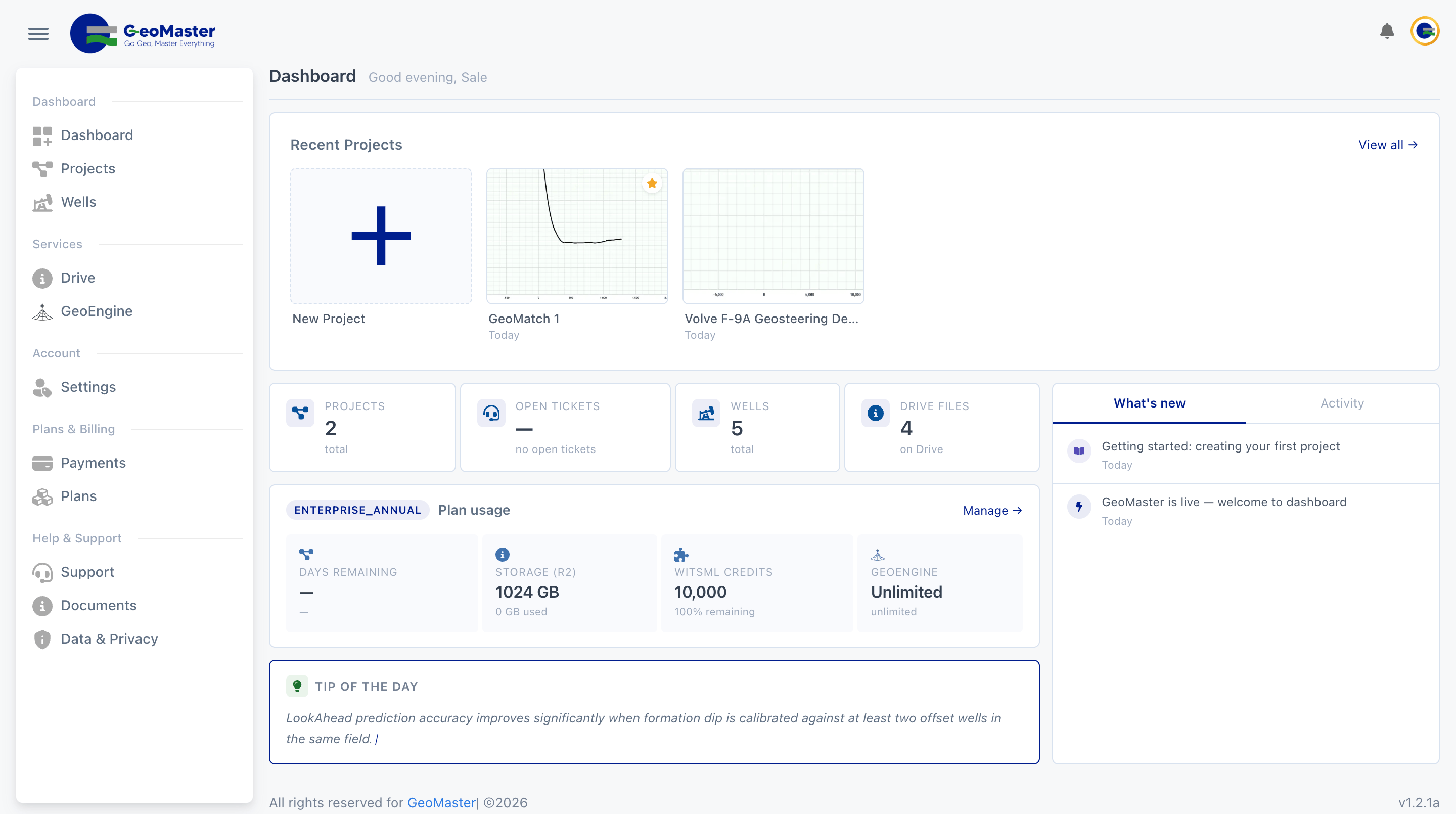
The Dashboard (/ or /dashboard) is your home screen after login. Top to bottom:
-
Recent Projects strip — thumbnails of your most recently opened projects, plus a New Project tile at the front. Click any project to open it; click New Project to start one. Click View all → to go to the full Projects list.
-
KPI cards — quick counts: total Projects, Open support tickets, total Wells, and Drive files.
-
Plan usage strip — your current plan badge, days remaining on the plan, Drive storage used, WITSML credit balance, and GeoEngine credit balance, each with a warning highlight when running low. Click Manage → to go to Plans & Pricing.
-
Tip of the day — a rotating geosteering/drilling tip.
-
Activity feed (right column) — toggle between What's new (product updates) and Activity (your recent account activity).
Main navigation is always available from:
-
The left sidebar — links to Dashboard, Projects, Wells, Drive, GeoEngine, WITSML, Settings, and more.
-
Your avatar (top-right) — opens a dropdown with Settings and Sign out, plus your plan/trial status.
Logging Out
Click your avatar in the top-right corner, then click Sign out at the bottom of the dropdown.
📸 Screenshot 14: Profile dropdown open with the "Sign out" option visible at the bottom.
What is GeoMaster
GeoMaster is a cloud-native geosteering and drilling-data platform. It runs entirely in the browser, no local software install, and brings well trajectory,…
Create a Project
A Project in GeoMaster is built on top of a single wellbore. Creating a project is really "pick (or create) a well and wellbore, then GeoMaster spins up the…